

#What's in this cold room?
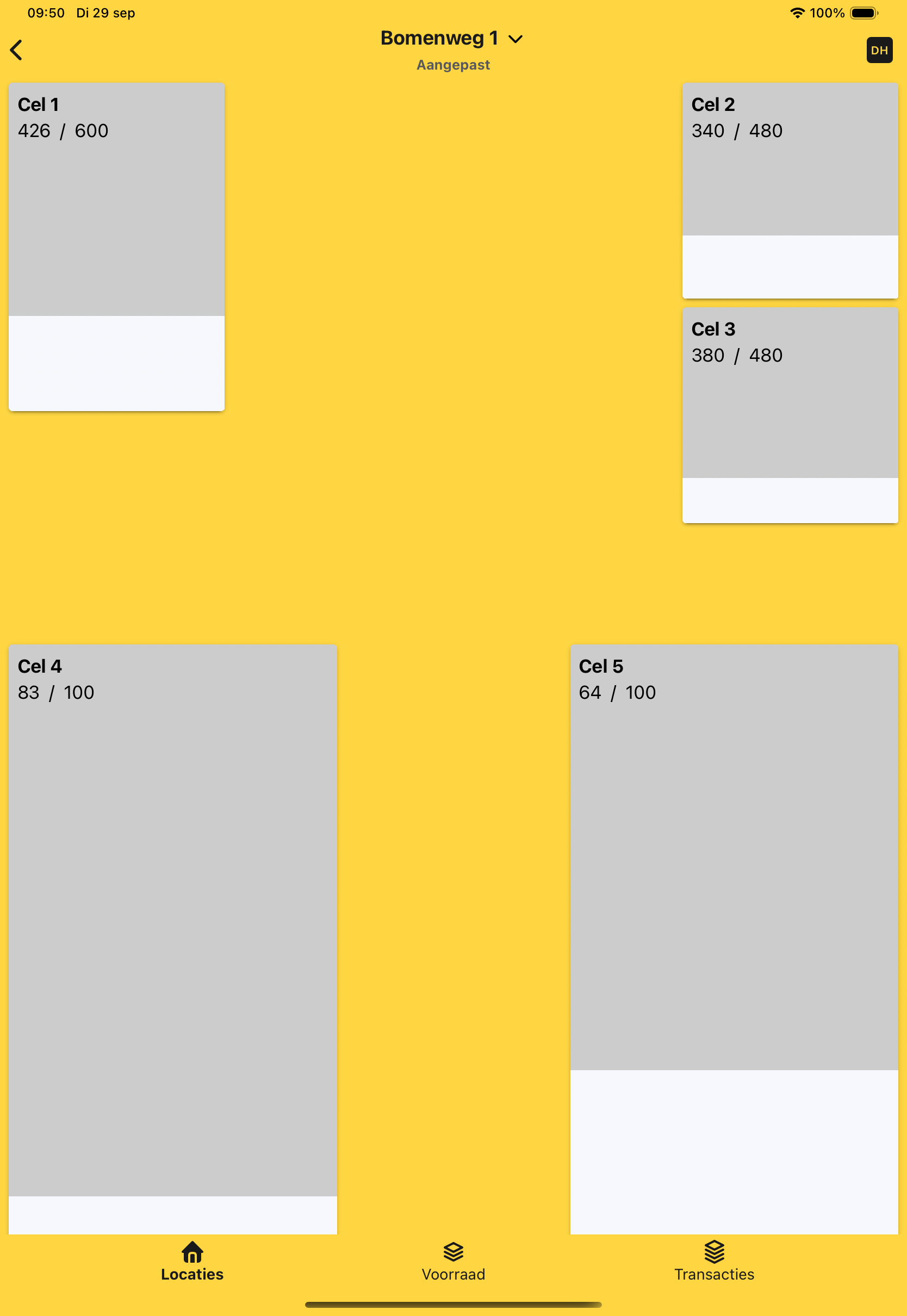
Standing by a cold room and want to know what's inside? Open it in HeyStack to see the inventory in each row. Looking for a particular batch? Use the overall inventory view to find its cold room and row.
#Set up cold rooms and rows the way your team knows them
HeyStack follows the layout of your store: site → cold room → row. Give each place the name your team already uses, such as 'Room 3, left row'.
Record the batches in each row, including their name, size, origin and quantity. In the mobile app, you can switch between the rows in a cold room.
#See how much space is still available
Set a capacity for each row. The web portal shows how much of it is in use and which cold rooms are nearly full. That helps you choose a row with space when putting a batch into storage.
HeyStack tracks inventory and storage locations. Use your climate control system to monitor temperature and humidity.

Cold rooms and available space in HeyStack. Click the image to enlarge it.
#Move or dispatch a batch
Has a batch moved to another cold room or row? Move all or part of it in HeyStack. When dispatching stock, reduce the quantity and, if useful, record a reason.
The history shows what changed, when it happened and who made the change. That helps you explain the current stock level later.
#Track inventory for different products
Whether you store potatoes, onions, flower bulbs or fruit, you can find batches by cold room and row. Record the details and quantity that matter for each batch.
Read more about batch registration in HeyStack.
Get started with HeyStack for free and set up your first cold room and row.